FGLair™ app SET UP - STEP4: Pairing USB: RC type 2 - Manual connection
1
Tap [+] to add a new air conditioner.
![Tap [+] to add a new air conditioner](https://media.airstagehvac.com/wp-content/uploads/sites/9/img-usb-rc1-easy-connection-ss-02.webp)
2
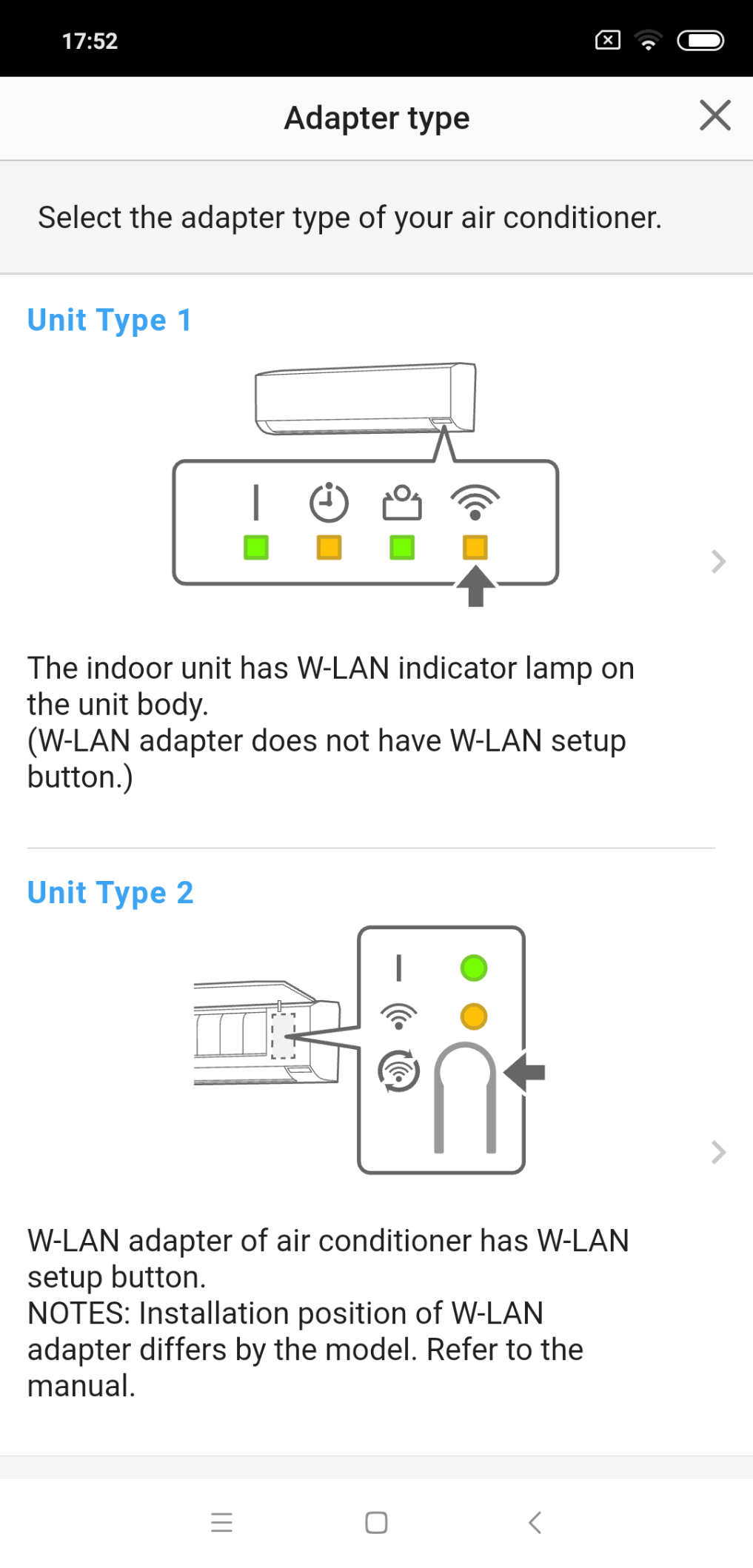
Select the adapter type of your air conditioner.
3
Select a [Remote Controller Type2].
![Select a [Remote Controller Type2]](https://media.airstagehvac.com/wp-content/uploads/sites/9/img-usb-rc1-easy-connection-ss-04.webp)
4
Read the note and tap [Next].
![Read the note and tap [Next]](https://media.airstagehvac.com/wp-content/uploads/sites/9/img-usb-rc1-easy-connection-ss-05.webp)
5
Select a [Manual connection].
![Select a [Manual connection]](https://media.airstagehvac.com/wp-content/uploads/sites/9/img-usb-rc1-easy-connection-ss-06.webp)
6
* Remote controller shown is a representative model. 【RC type 2】 Press down [TIMER ON] on the remote controller for more than 5 seconds.
![* Remote controller shown is a representative model. 【RC type 2】 Press down [TIMER ON] on the remote controller for more than 5 seconds](https://media.airstagehvac.com/wp-content/uploads/sites/9/img-usb-rc2-easy-connection-ss-08.webp)
7
【RC type 2】 [L1] will be displayed on the remote controller display.
![【RC type 2】 [L1] will be displayed on the remote controller display](https://media.airstagehvac.com/wp-content/uploads/sites/9/img-usb-rc2-easy-connection-ss-09.webp)
8
Press [START/STOP].
![Press [START/STOP]](https://media.airstagehvac.com/wp-content/uploads/sites/9/img-usb-rc2-easy-connection-ss-10.webp)
9
Select [01] using  .
.
![Select [01] using](https://media.airstagehvac.com/wp-content/uploads/sites/9/img-usb-rc2-manual-connection-ss-11-u.webp)
10
Press [START/STOP].
![Press [START/STOP]](https://media.airstagehvac.com/wp-content/uploads/sites/9/img-usb-rc2-easy-connection-ss-11.webp)
11
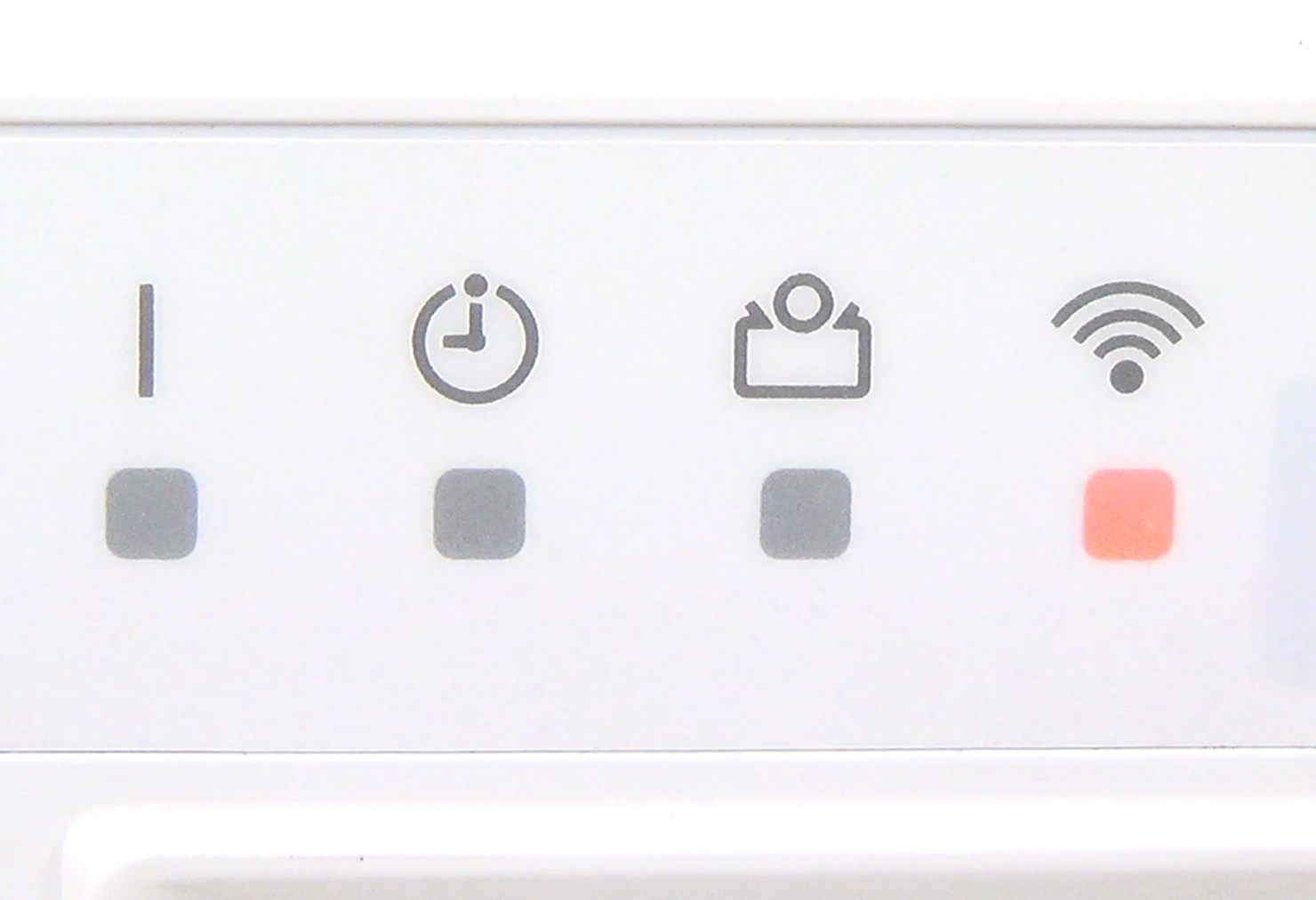
W-LAN indicator lamp on the indoor unit will blink.
12
Select [Next] on the mobile app screen.
![Select [Next] on the mobile app screen](https://media.airstagehvac.com/wp-content/uploads/sites/9/img-usb-rc1-manual-connection-ss-13.webp)
iOS flow
Open [Setting] -> W-LAN by following the instructions on the mobile app.
![Open [Setting] -> W-LAN by following the instructions on the mobile app](https://media.airstagehvac.com/wp-content/uploads/sites/9/img-usb-rc1-manual-connection-ss-ios-01.webp)
Select the SSID of the air conditioner you are connecting to.
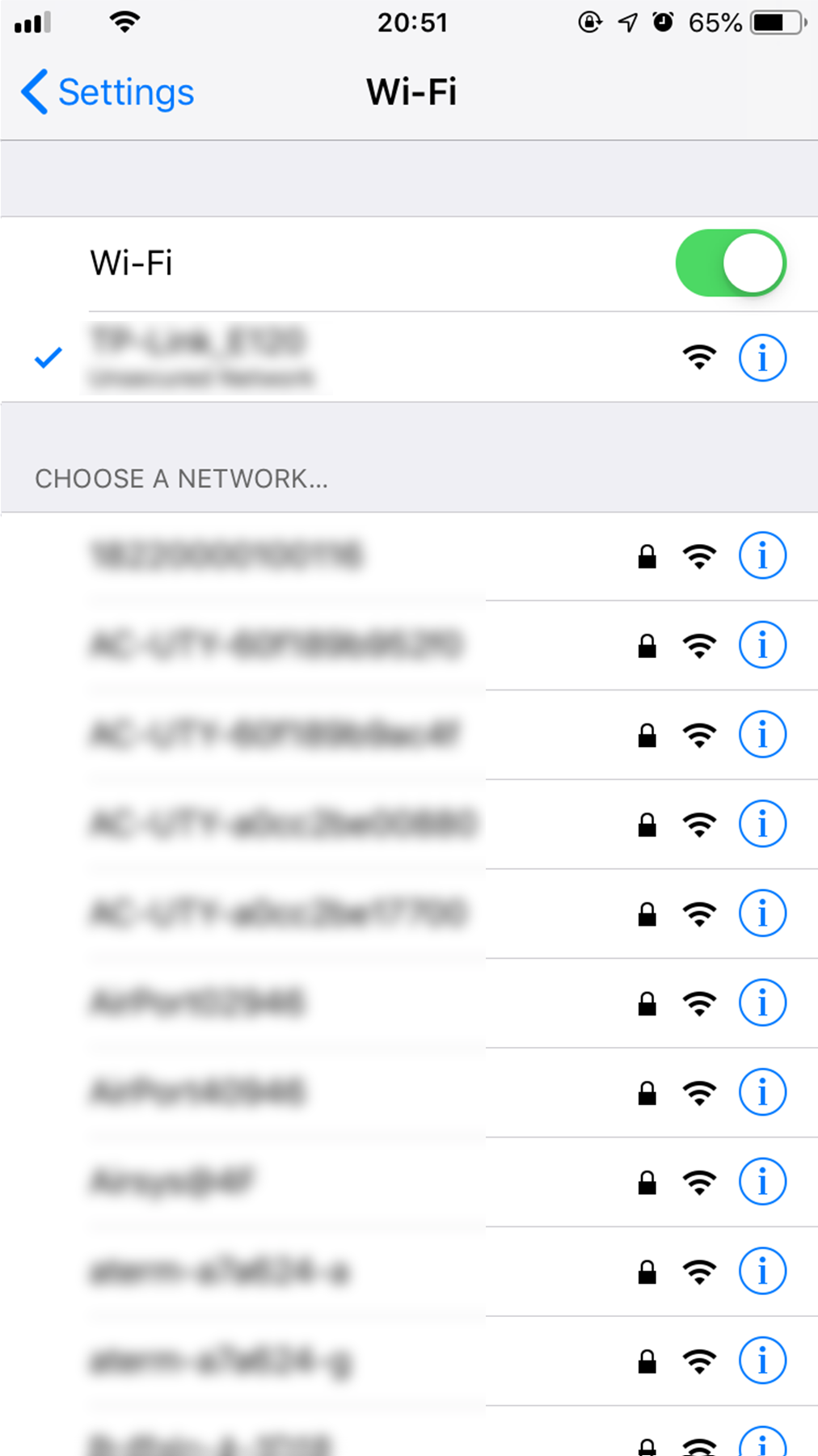
Enter the PIN code written on the W-LAN adapter then press [Join]. Depending on the type of W-LAN adapter, you may not need to enter a password.
![Enter the PIN code written on the W-LAN adapter then press [Join]. Depending on the type of W-LAN adapter, you may not need to enter a password](https://media.airstagehvac.com/wp-content/uploads/sites/9/img-usb-rc1-manual-connection-ss-ios-03.webp)
"Open in FGLair?" pop-up will be displayed, tap [Open]. When pop-up is not displayed, return to app screen manually.
!["Open in FGLair?" pop-up will be displayed, tap [Open]. When pop-up is not displayed, return to app screen manually](https://media.airstagehvac.com/wp-content/uploads/sites/9/img-usb-rc1-manual-connection-ss-ios-04.webp)
Tap [Continue].
![Tap [Continue]](https://media.airstagehvac.com/wp-content/uploads/sites/9/img-usb-rc1-manual-connection-ss-ios-05.webp)
Android flow
Select the SSID of the W-LAN adapter you are connecting to. For iOS, it is necessary to select the SSID of the adapter on the terminal's W-LAN setting screen.
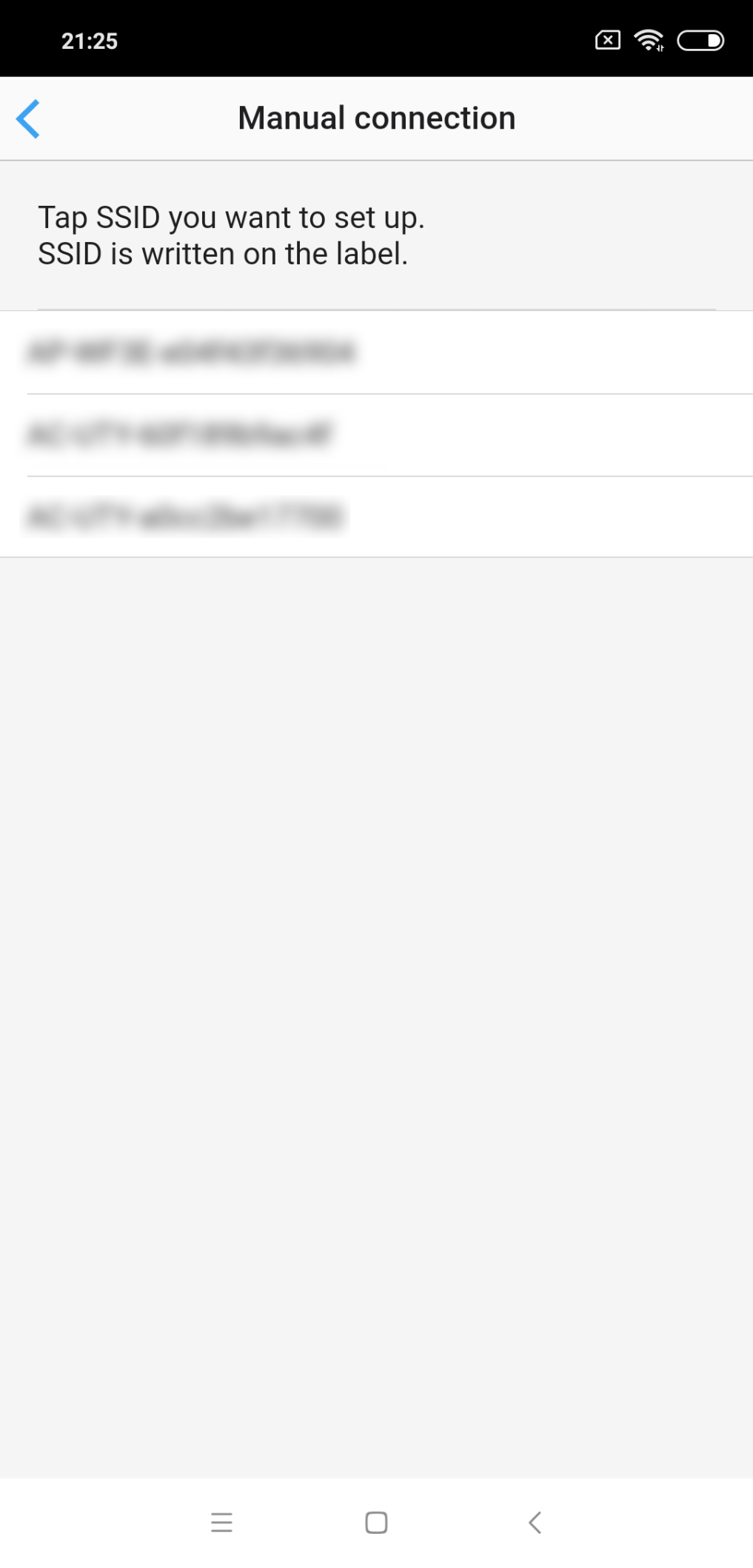
Enter the PIN code written on the W-LAN adapter then press [Connect]. Depending on the type of W-LAN adapter, you may not need to enter a PIN code.
![Enter the PIN code written on the W-LAN adapter then press [Connect]. Depending on the type of W-LAN adapter, you may not need to enter a PIN code](https://media.airstagehvac.com/wp-content/uploads/sites/9/img-usb-rc1-manual-connection-ss-16.webp)
13
Select the SSID of the W-LAN adapter you are connecting to. For iOS, it is necessary to select the SSID of the adapter on the terminal's W-LAN setting screen.
14
Enter the PIN code written on the W-LAN adapter then press [Connect]. Depending on the type of W-LAN adapter, you may not need to enter a PIN code.
15
Select [Next] on the mobile app screen.
![Select [Next] on the mobile app screen](https://media.airstagehvac.com/wp-content/uploads/sites/9/img-usb-rc1-manual-connection-ss-17.webp)
16
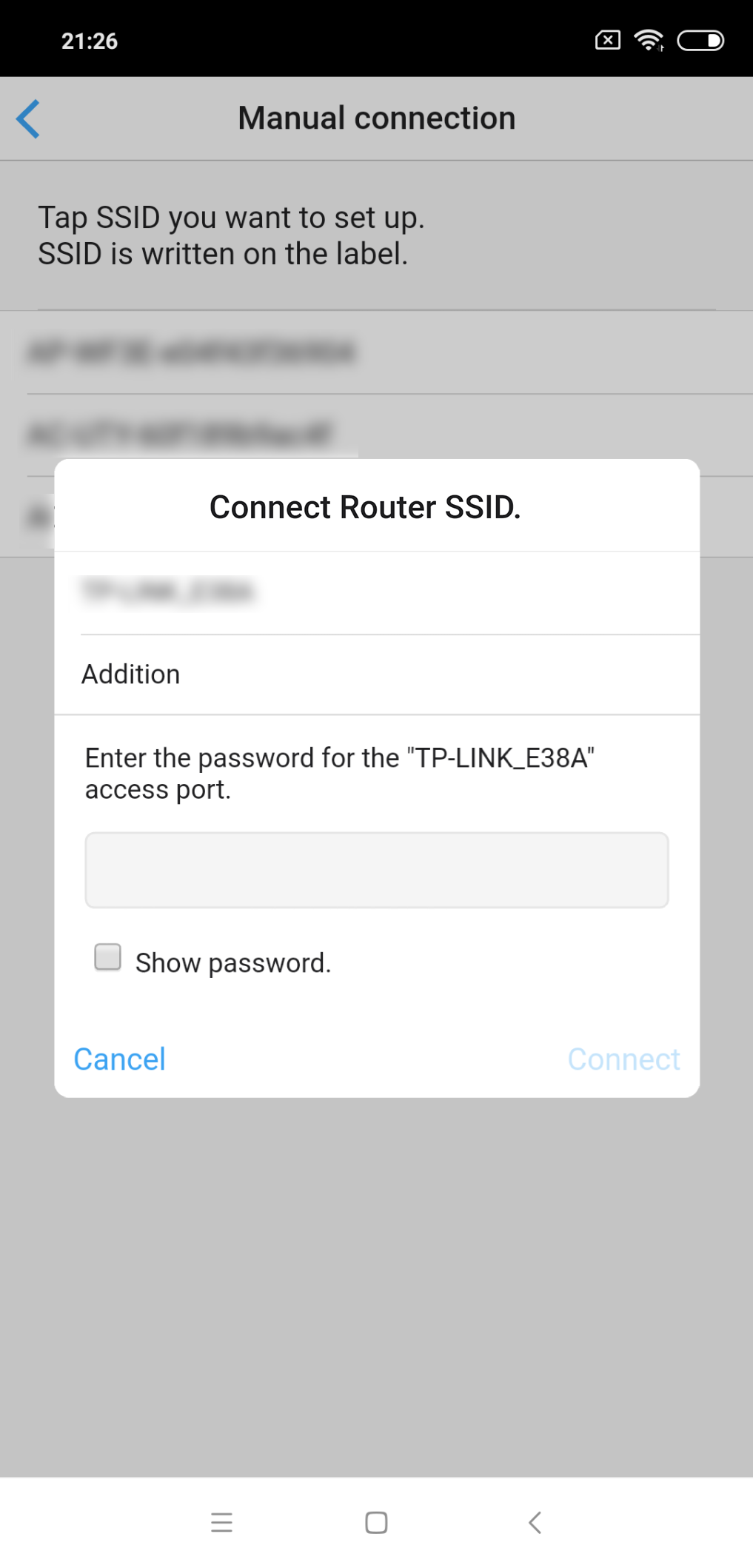
Select the W-LAN Access Point you are connecting to.
17
Enter the W-LAN Access Point password then press [Connect].
![Enter the W-LAN Access Point password then press [Connect]](https://media.airstagehvac.com/wp-content/uploads/sites/9/img-usb-rc1-manual-connection-ss-19-02.webp)
18
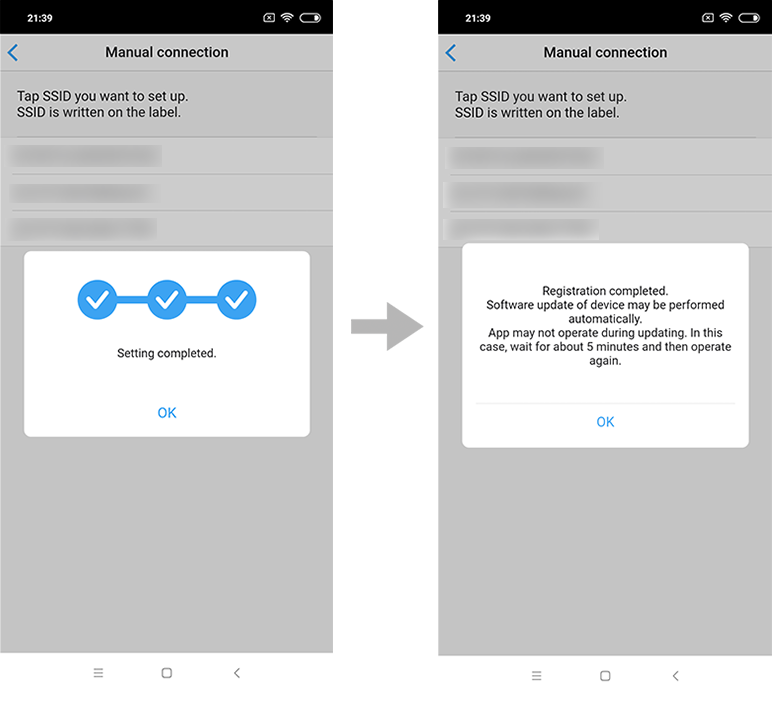
 on the indoor unit will turn on.The setting is completed.
- *
- The time to complete the setting is different depending on the communication environment.
- *
- It takes max 15 minutes to complete the setting.
- *
- “FGLair” is a trademark of GENERAL Inc.
- *
- The company names and brand names referred to in this page are themselves the trademarks, registered trademarks, and products of the respective companies.
- *
- Screens, figures and movies are only for explanation.